Separate the three kinds of “split screen”
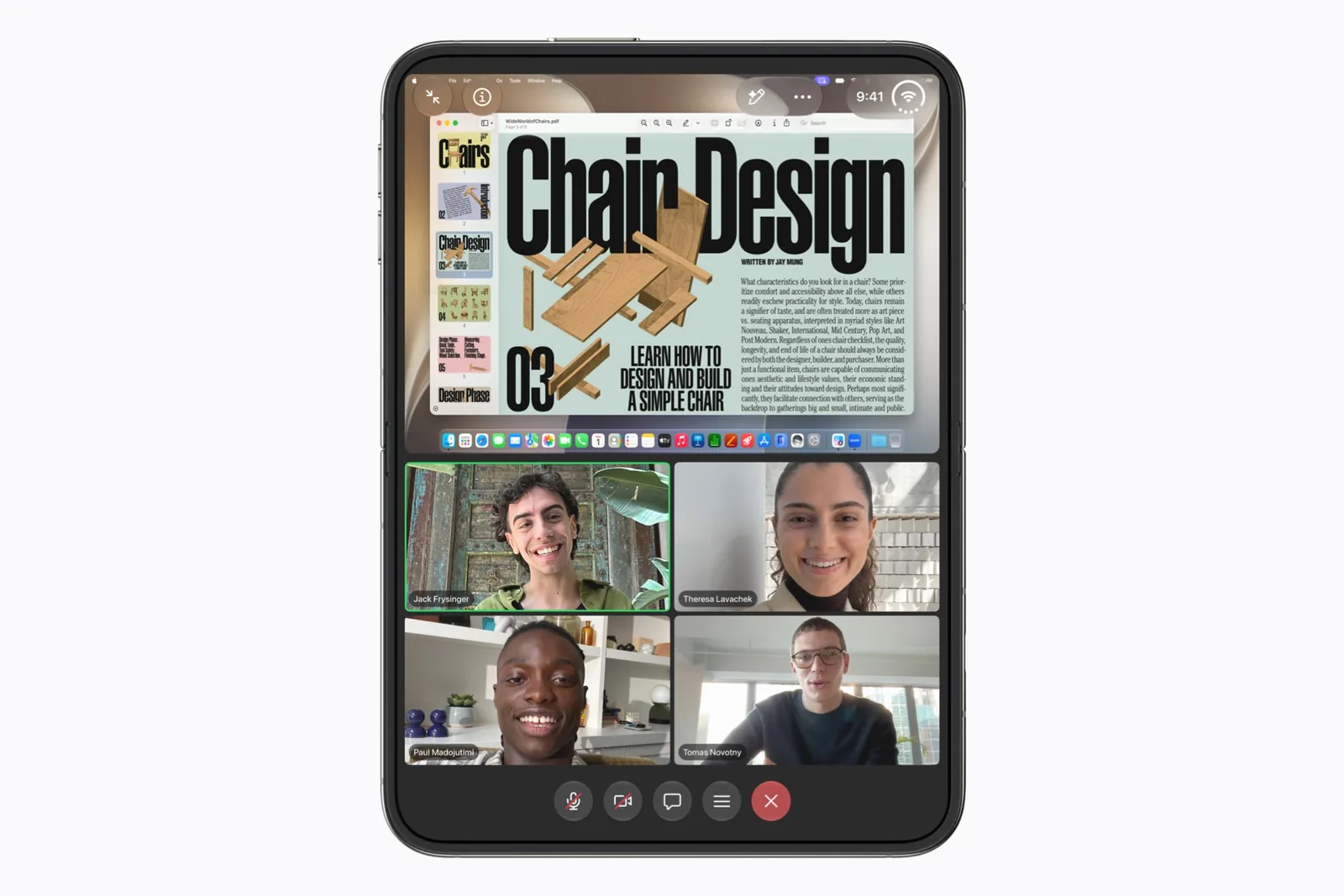
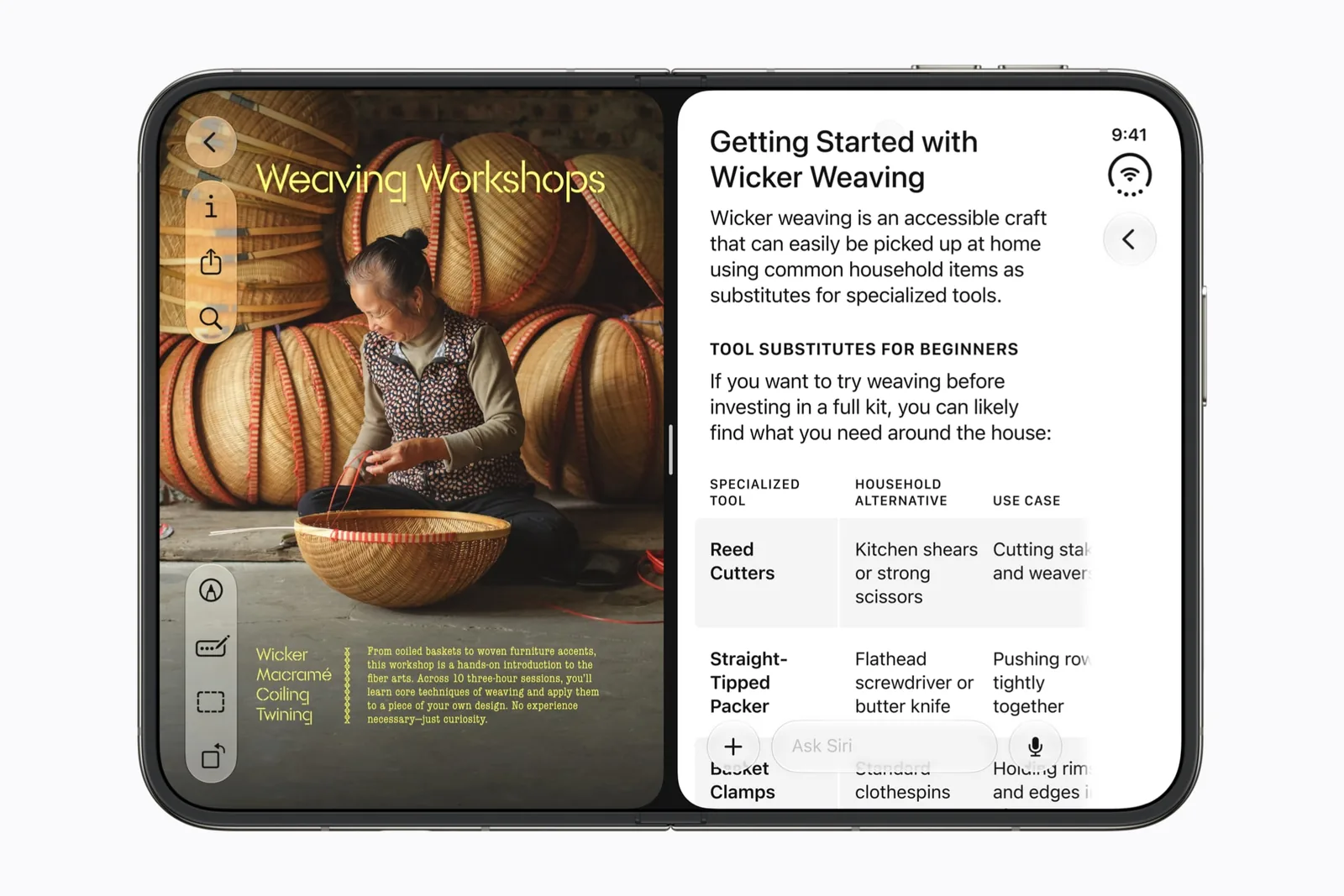
Apple’s announcement describes system Split View, same-app windows and saved app pairs. Apple’s design talk shows a 50/50 arrangement. Those statements describe the platform; they do not certify every combination of third-party apps.
Start by identifying what your screenshot contains. Two apps can look much like two panes in one app. The distinction matters when you close a pane, move content, or expect a call to keep running.
| Arrangement | Example | What to check |
|---|---|---|
| Two apps | A browser and a communication app. | Whether both tasks remain usable. |
| Two windows | Safari beside Safari. | Whether your selected pages remain open. |
| One app, two panes | Content and people inside Zoom. | How that app organizes its own content. |
Start with a reference task
Use Safari to compare two public pages before trying a more complicated workflow. Pick one value to compare, such as a product dimension. Keep the variant and region the same on both pages.
Apple demonstrates dragging an app toward the side to form Split View. In its developer walkthrough, the home indicator is used to drag the app into a side drop area. Follow the controls available on your installed software; this page does not invent a menu name or a shortcut for saving pairs. For the second case, where both halves belong to one app, see two windows of the same app.
Give each half a job
A useful pair has a reference on one side and an action on the other. Keep a source page beside the place where you need its information. Two feeds competing for attention are not automatically an improvement over one.
Type a short draft before judging the layout. Check how much space remains when the keyboard is visible. If the source becomes unreadable, return to one app for writing and use the other only when you need to check a detail.
Check the left and right positions
Apple’s preparation talk calls out asymmetric safe areas and asks developers to test both sides of Split View. A layout that works on one side is therefore not a complete test of the other.
For your own check, place the same app on the opposite side and locate its primary action again. Then change pose and return. Record whether the selected item and draft remain intact. These are test questions, not claims of a confirmed defect.
Save a workflow only after trying it
Apple announces the ability to save app pairs. Our app-pairs guide suggests tasks to try, with a separate pass condition for each. It is not a list of combinations tested on retail hardware.
For work calls, distinguish Zoom’s in-app preview from a two-app setup. For channel context, use Slack’s profile. Keep call persistence and draft persistence as separate checks instead of one blanket “works” label.
Record the exact result
A useful report names the app version, iOS build, arrangement and action. “The draft was preserved when I moved Slack from the right side to the left” is more actionable than “multitasking is good.”
Use the testing checklist for a repeatable record. This guide does not establish background audio, protected-video behavior, keyboard shortcuts or support for more than the announced two-app arrangement.
Sources & scope
Primary references. The claim beside each link sets its scope.
- Apple unveils iPhone DuoApple Newsroom · Checked Sep 19, 2026
Official announcement and app previews; not a retail-device test.
- Design for iPhone DuoApple Developer · Checked Sep 19, 2026
Design guidance and transcript: resizable layouts, controls, Split View and fold avoidance.
- Prepare your app for iPhone DuoApple Developer · Checked Sep 19, 2026
SDK-dependent screen usage, size classes, safe areas and Device Hub. Transcript reviewed.