Give each pane a different job
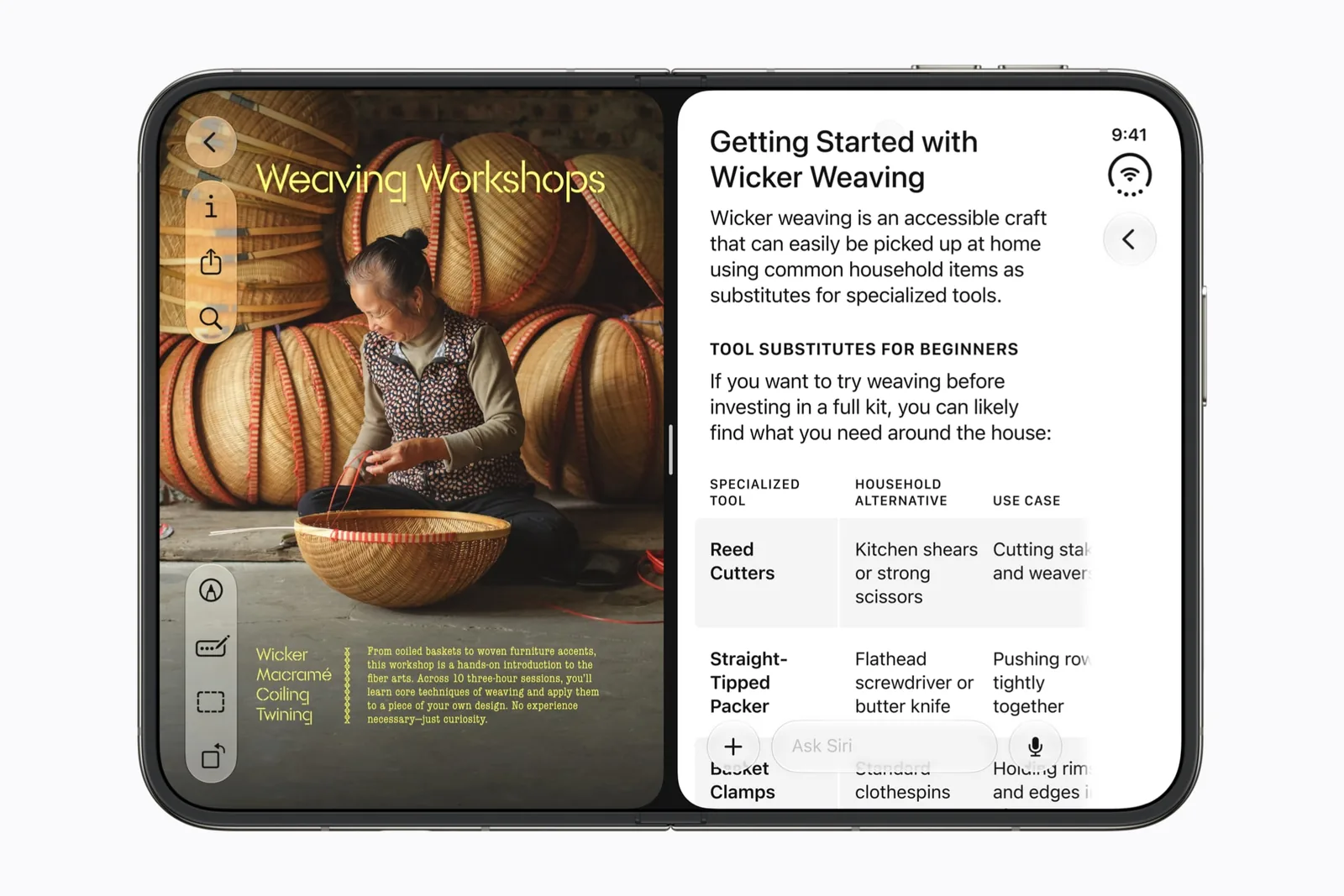
Apple’s Safari example is concrete: two windows can sit next to each other. Our suggested use is a comparison where you would otherwise keep switching tabs.
Put a product’s specifications on one side and its delivery or return information on the other. Compare the same variant and region. A wider workspace cannot correct a comparison between different products.
A comparison you can repeat
Choose two public pages. Identify the exact values you need before arranging the windows. Adjust text size for reading, then check that page navigation and consent banners do not hide the content you came for.
For a research task, keep the original source in one pane and the explanation you are evaluating in the other. This is an editorial workflow suggestion, not a claim that the browser validates either source.
| Left pane | Right pane |
|---|---|
| Original specification | A product listing for the same version. |
| A source paragraph | An explanation you are checking. |
| An event schedule | A location or travel reference. |
Websites need their own check
Do not mistake Safari window support for proof that an individual web application works at every width. Try forms, fixed toolbars and cookie dialogs in the actual space you have left.
When a page looks clipped, test whether the problem belongs to the website, its zoom level or the browser arrangement. The black-bars guide explains why unused screen space and an unadapted interface are different diagnoses.
Choose the next task, not another browser list
Use Safari as a reference companion to Slack or a candidate beside Zoom. The paired workflows need separate checks for call behavior and draft persistence.
Start with the multitasking guide for the distinction between two app windows and two panels inside one app.
A useful first check
Use these prompts when you have the app and device in hand. They are a test plan, not reported test results.
- Open two pages showing the same product variant.
- Check text and dialogs in each pane.
- Change display without losing the page you were comparing.
- Record any website-specific clipping separately from browser behavior.
Keep a repeatable test record with the app version, software build and outcome.
Sources & scope
Primary references. The claim beside each link sets its scope.
- Apple unveils iPhone DuoApple Newsroom · Checked Sep 19, 2026
Official announcement and app previews; not a retail-device test.
- Design for iPhone DuoApple Developer · Checked Sep 19, 2026
Design guidance and transcript: resizable layouts, controls, Split View and fold avoidance.