Write the test identity first
Record the date, app version, OS build and whether the device is physical hardware or a simulator. Use a task description that another person could follow. “Open the same draft and show the keyboard” is repeatable; “test productivity” is not.
The downloadable CSV leaves result cells blank. That is intentional. A checklist is a recording tool. It does not mean this site has run those tests. Keep a copy with the exact build you evaluated.
Choose an object with state
Use a draft, a selected file, a browser page or a playback position. Begin with the task already in progress, then change the display arrangement. Note whether the selection and your place remain understandable.
The object should be yours or public. Do not use a customer record, internal workspace or private call simply because it is available.
| App task | Test object | Useful result |
|---|---|---|
| Write | A non-sensitive draft. | Selection and text preserved. |
| Browse | A public page. | Place and navigation still understandable. |
| Edit | Your own short clip. | Selection and export checked separately. |
| Call | A consenting practice partner. | Required audio and camera behavior recorded. |
Cover more than one arrangement
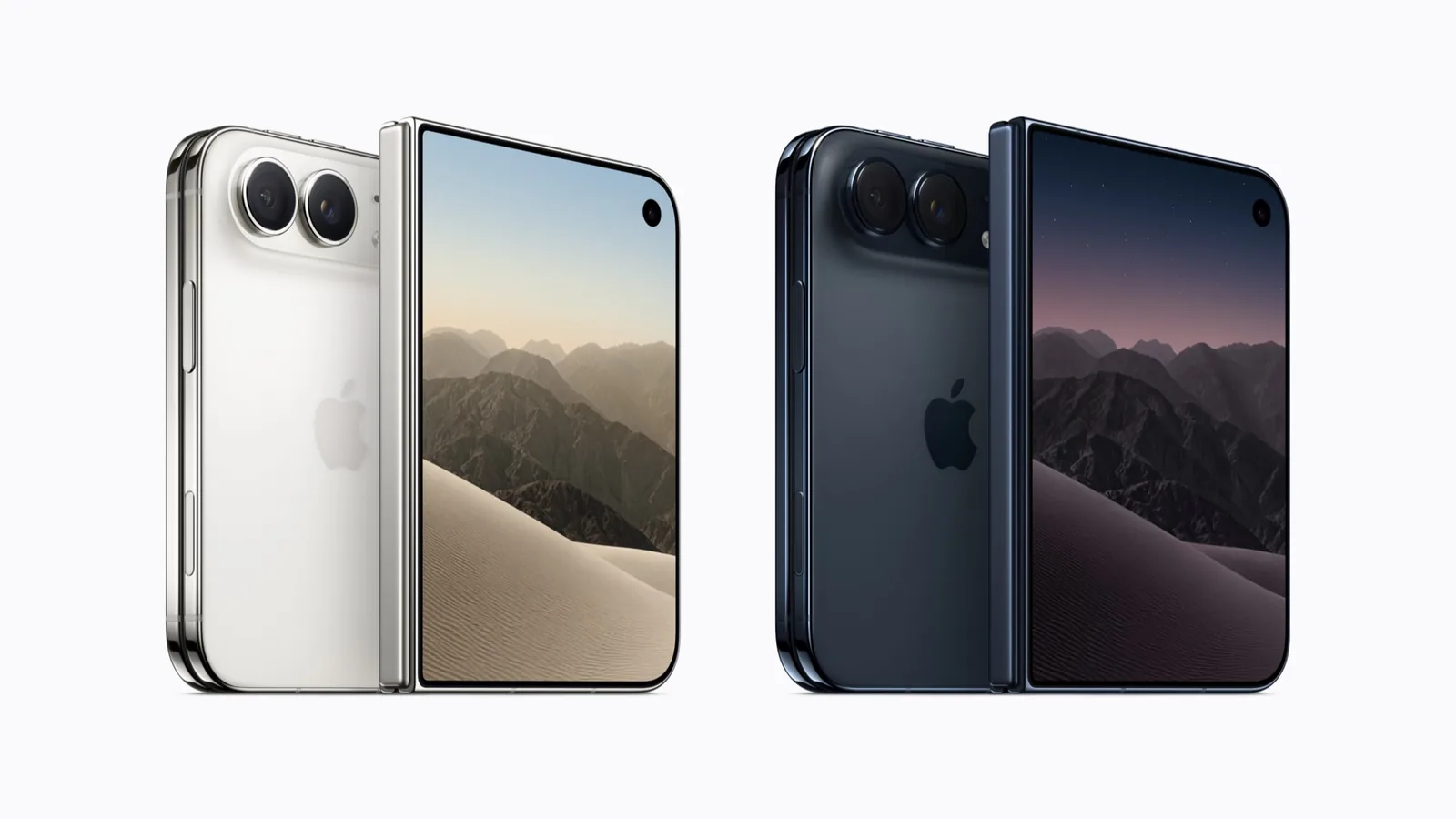
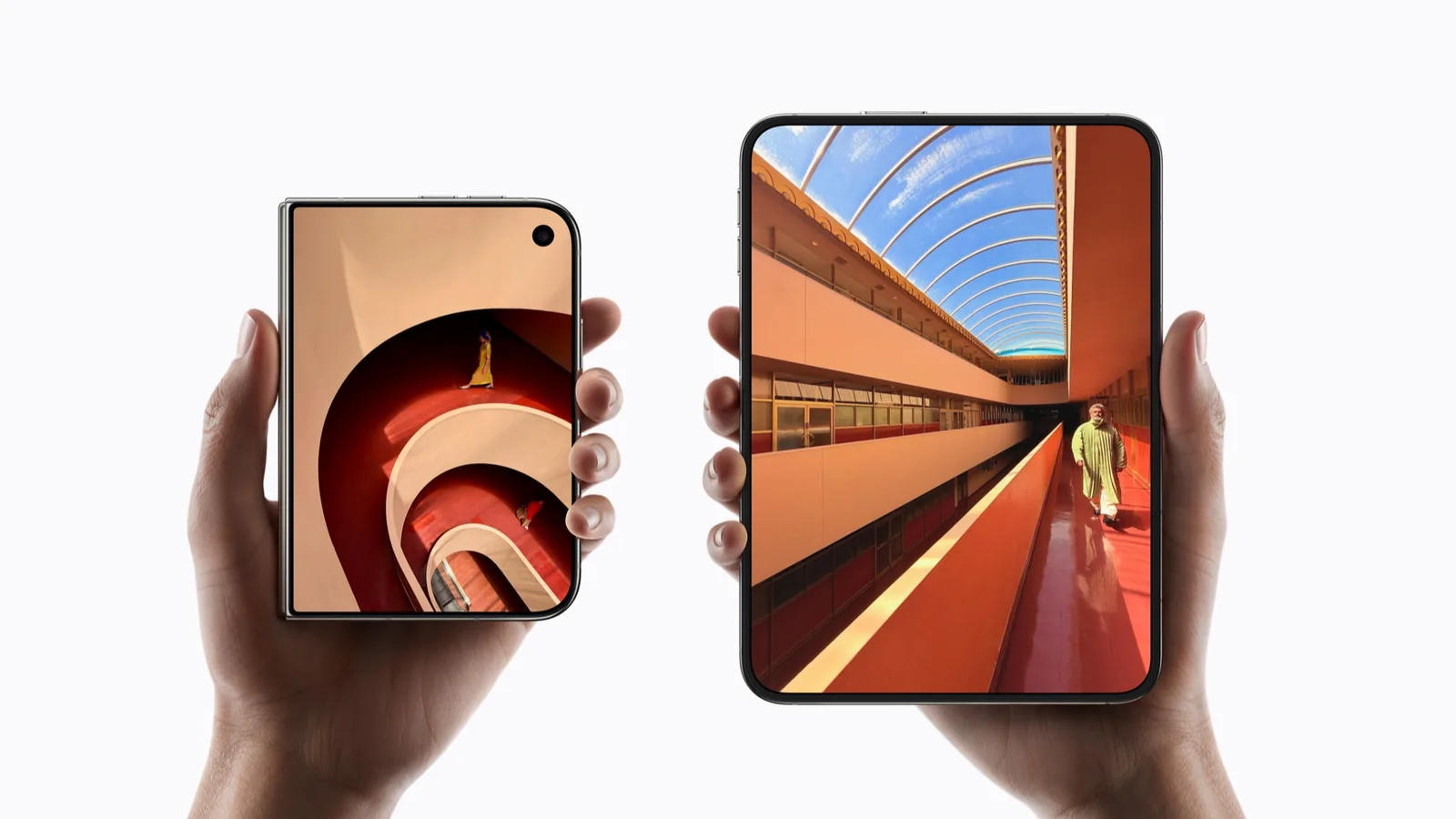
Apple’s design guidance explains that the same experience must adapt across displays and poses. Our checklist turns that into a practical sequence rather than a score.
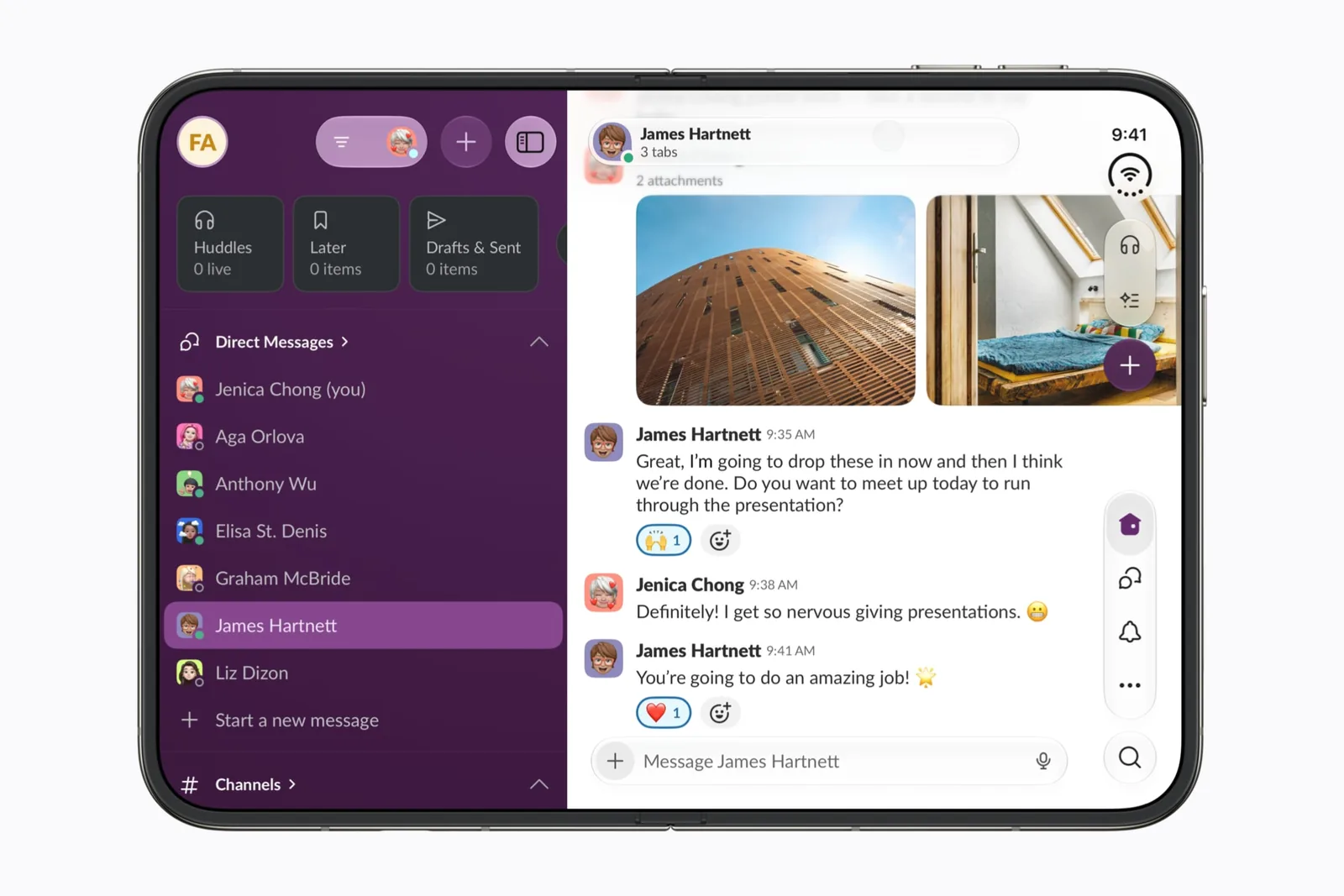
Run the task closed, open and partially folded where relevant. Rotate it. For a two-app task, test both the left and right positions; Apple’s preparation talk specifically calls out asymmetrical safe areas.
- Record the closed-display result.
- Open without restarting the task.
- Try the relevant partially folded pose.
- Rotate and locate the same primary action.
- Test both sides of Split View when the task uses it.
Add the keyboard and larger text
A clean screenshot often omits the state that makes an interface difficult to use. Show the keyboard while composing and increase text size for a reading task. Check whether you can still reach the action needed to finish.
For playback, keep subtitles visible. For editing, check the final exported file. The Netflix and Detail profiles provide task-specific questions instead of using one generic test for both.
Keep observations separate from conclusions
Use pass, fail, not tested or not applicable for each row. Beside a failure, describe the action and visible result. A behavior that occurred once should not become a claim that an app always fails. Before you record a fold result, check what Apple has and has not published about the transition, so a documented behavior is not filed as a bug.
Repeat a failure with the same inputs, then check whether changing one factor changes the result. Do not change app version, account and orientation together and claim you found the cause.
Share enough detail without sharing private data
Remove private names, messages and documents before publishing anything. A simulator result must remain labeled as such. A first-party preview should not be re-captioned as your own test.
Use Submit an app for a public source or a reproducible report. Read the labels before suggesting a status change. The checklist does not measure battery life, performance under sustained load or accessibility conformance in full.
Your repeatable test checklist
These ticks mark checks you have performed, not passes. Record the result separately in the CSV. Ticks stay in this browser.
0 of 8 checks recorded
Sources & scope
Primary references. The claim beside each link sets its scope.
- Design for iPhone DuoApple Developer · Checked Sep 19, 2026
Design guidance and transcript: resizable layouts, controls, Split View and fold avoidance.
- Prepare your app for iPhone DuoApple Developer · Checked Sep 19, 2026
SDK-dependent screen usage, size classes, safe areas and Device Hub. Transcript reviewed.