A meeting has more than one thing to look at
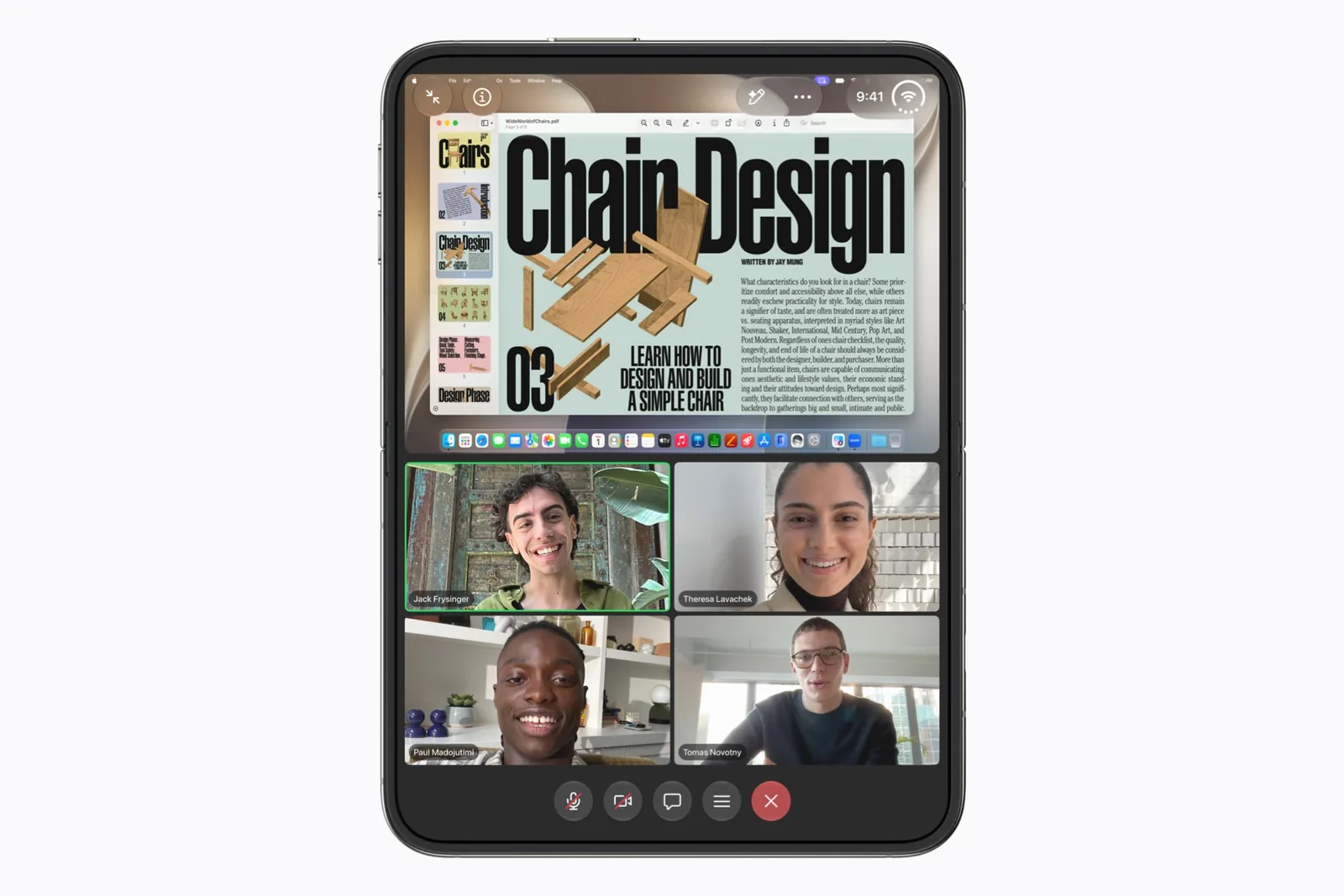
Apple’s preview makes Zoom a relevant candidate for a work shortlist. When a presenter points to something, you need the shared material; when someone reacts, you need the people. Our selection is about keeping that context together, not about a measured improvement in meeting quality.
Test the meeting you actually attend. A screen share with small spreadsheet text is a different task from a face-to-face conversation. The larger view is only useful when the important text remains readable from your normal sitting position. A meeting held in a room is a different task again: Phrase records it with the microphone and writes the note, and it does not capture a Zoom call, so the two apps cover different meetings.
Run a short practice meeting
Ask a colleague to share a slide with a title, a small caption and a diagram. Find each item without zooming first. Then open the participant view and check whether the presenter’s face and the slide can still be followed together.
Repeat with the keyboard visible. Typing a chat message is a useful stress test because it reduces the space left for the call. Keep the screen recording private unless every participant has agreed to share it.
| Situation | Pass condition |
|---|---|
| Screen share | The detail you need is readable at a comfortable distance. |
| Chat reply | The keyboard does not hide the action you need next. |
| Changing pose | Mute and leave remain easy to locate. |
| Returning to the call | Your meeting context is understandable without restarting. |
A second app is a separate test
Seeing content and participants inside Zoom is not the same thing as running Zoom beside another app. Keep those claims separate when you compare apps.
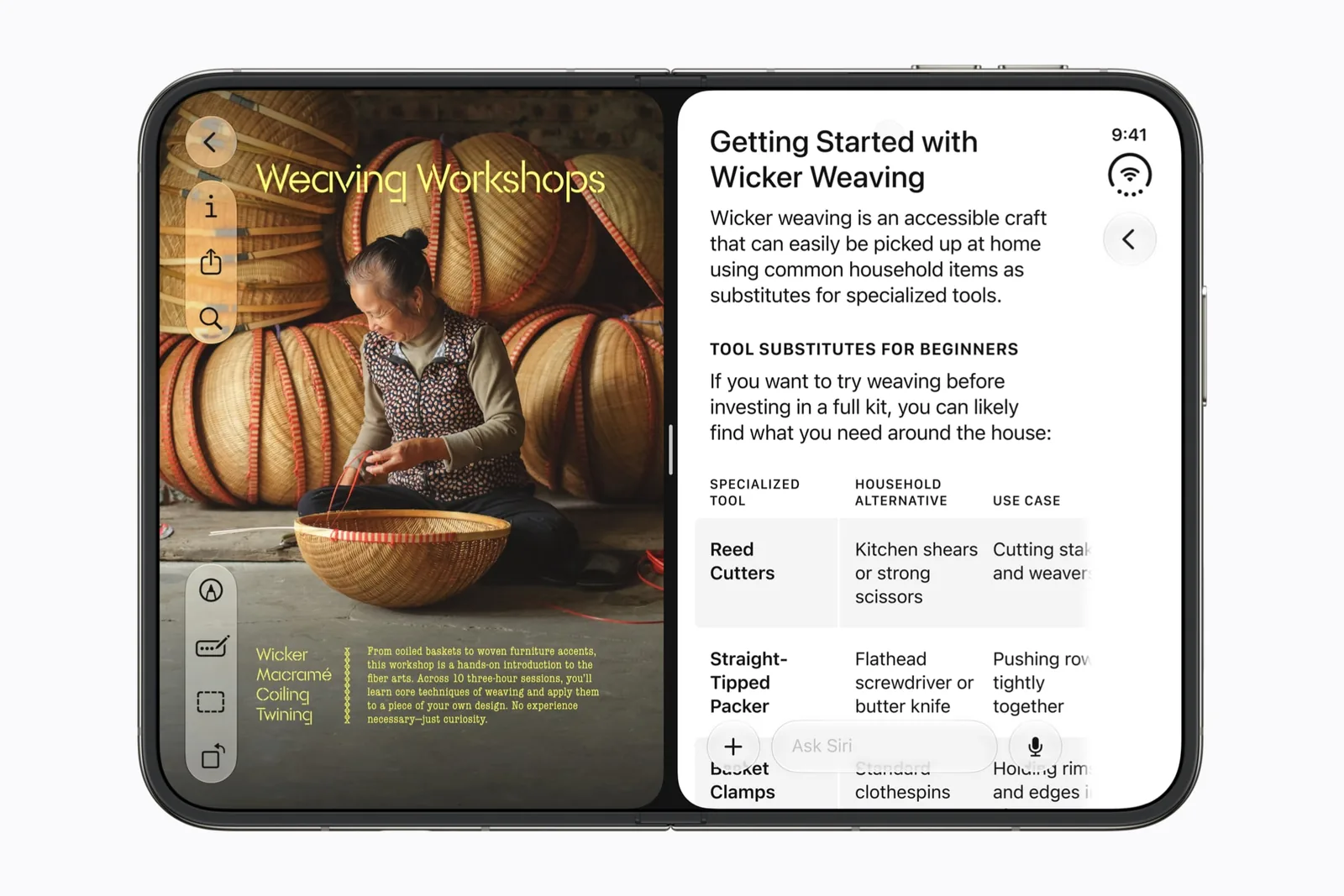
A proposed workflow is to keep a reference page in Safari while following a meeting. That pairing is a workflow idea, not a tested recommendation for call persistence. Use the multitasking guide to distinguish in-app panes from system Split View.
Decide what must stay visible
Write down the one thing you most often miss during calls: a face, a slide, a chat or your notes. Judge the layout against that item. A dense arrangement that technically shows everything can still be the wrong choice for your task.
For the conversation before and after the meeting, see Slack and the work collection. Those pages cover communication context rather than video playback.
A useful first check
Use these prompts when you have the app and device in hand. They are a test plan, not reported test results.
- Compare a detailed share with participant tiles visible.
- Find mute and leave in each pose you use.
- Open the keyboard and send a practice chat.
- Check call behavior before trusting any two-app workflow.
Keep a repeatable test record with the app version, software build and outcome.
Sources & scope
Primary references. The claim beside each link sets its scope.
- Apple unveils iPhone DuoApple Newsroom · Checked Sep 19, 2026
Official announcement and app previews; not a retail-device test.
- Design for iPhone DuoApple Developer · Checked Sep 19, 2026
Design guidance and transcript: resizable layouts, controls, Split View and fold avoidance.