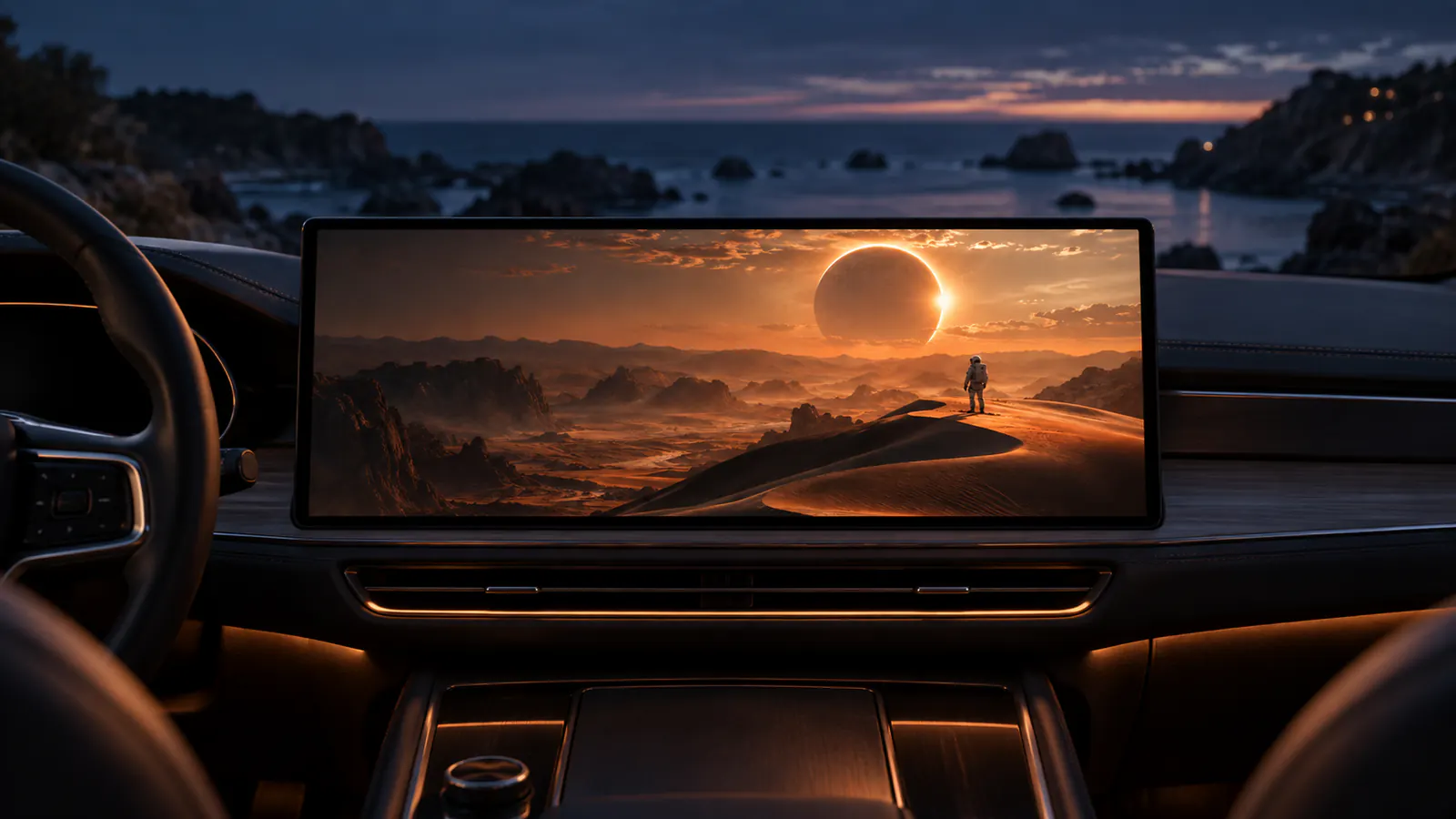
Preparing personal movies for a compatible car display while parked.
What to look for
Personal library and permitted screen sharing
Source
Developer preview · Coming soon
WHAT THE DEVELOPER SAYS
What the preview actually covers
Dashow’s developer website describes a video player for iPhone and iPad with a personal library and a separate Cast to Car workflow. The site lists the app as coming soon as of September 19, 2026.
Scope. Developer-described capabilities, not a hands-on review or an Apple showcase. Compatible car video output is required. Duo-specific layouts and the downloadable release are not established by these sources.
Dashow describes two separate routes to a car display, and they do not behave the same way. One plays out of a library the app knows about. The other shares whatever is on the iPhone screen. Which one you need depends on where the video already lives.
ROUTE ONE
Play from a library you added yourself
Dashow is a video player before it is anything else. You point it at a media server, a network folder or a playlist, and it browses films, episodes and channels in one place. Playback is checked on the phone first; the car display is chosen afterwards, while parked.
Plex, Jellyfin and Emby, added with the server address and an account that can reach the library
SMB and WebDAV folders, direct video links, and imports from Files and Photos
Your own M3U playlist for live channels. Dashow says it bundles no subscription of its own
Downloads taken before you set off, for a stop where the server is out of reach
ROUTE TWO
Share the screen from an app that permits it
Cast to Car is the other route. Choose the display, start the system screen-sharing session, then open the app you actually want to watch. The phone keeps the controls and the car display shows what the phone is showing, which is why the app being shared decides whether anything appears.
Dashow names YouTube, TikTok, Instagram and Safari as the kind of app people reach for
Portrait clips stay portrait. A wide dashboard display does not reshape them
The developer suggests opening the video first, so sharing does not become searching
A personal clip is the useful first test: it separates the display setup from an app's own restrictions
Images: Dashow. Its own press pictures of its own app, not photographs of anything tested here.
Where the video comes from
The sources Dashow lists for its own player. Media, subscriptions and channel access come from the account or the file you supply, not from anything included with the app.
PlexMedia server
JellyfinMedia server
EmbyMedia server
SMBNetwork folder
WebDAVNetwork folder
M3ULive channel playlist
Files & PhotosAlready on the phone
Direct linksA video at a URL
Or share the screen from another app
Examples the developer names, not a list of what is guaranteed to work. Screen sharing shows a picture only where the app allows capture; Dashow says protected streaming titles can restrict recording, mirroring and external output.
YouTubeFull screen suits landscape
TikTokSwipe on the phone
InstagramVertical stays vertical
SafariWhatever the page plays
PhotosYour own clips
Software
iOS or iPadOS 26.4 or later.
The car
A vehicle or receiver with video output. Dashow is explicit that a CarPlay connection carrying audio and navigation does not establish it, and that there is no verified list of cars.
The app on screen
For the sharing route, one that permits screen capture. Protected titles may show nothing.
When
While parked.
Availability
Listed as coming soon, checked 19 September 2026.
What is Dashow for?
Dashow is an iPhone and iPad video player built around your own media. The developer describes playback on the device or a compatible car display while parked. Its separate Cast to Car mode is for content shared from another app. Product preview.
That makes it a different entry in this directory. Netflix on Duo concerns a service adapting to an unfolded phone; Dashow concerns moving permitted video to another display. A larger iPhone screen and a compatible dashboard are separate capabilities.
The useful question is where your next film lives. A local video, a media-server episode and a clip inside another app lead to different preparations. Start there rather than treating every route as screen mirroring.
Bring the library you already use.
Dashow’s media-library guide describes Files and Photos imports, Plex, Jellyfin and Emby libraries, SMB and WebDAV folders, direct video links, and your own M3U playlists. Media, subscriptions and channel access come from your sources, not from an included content bundle.
Your source
A useful first check
A personal video in Files or Photos
Import one short clip and check sound and seeking.
Plex, Jellyfin or Emby
Choose one episode before connecting the entire routine.
SMB or WebDAV
Confirm the phone can reach the folder containing the video.
An M3U channel list
Test a channel with a working connection; a playlist is not a downloaded movie.
Screen sharing is its own workflow.
The developer’s Cast to Car instructions say to select a display, begin the system screen-sharing session, then open the source app. Control stays on the iPhone in this workflow. Sharing does not establish that the source app can be controlled from the dashboard.
Screen capture permission matters. A service may show its menus but restrict a protected video. Use permitted personal content as your first test; do not treat the presence of an app icon or a successful connection as proof that every title will play.
A narrow video on a wide dashboard can leave space on either side. The black-bars guide separates fitting the whole picture from cutting it to fill the screen. Geometry cannot diagnose a capture restriction.
Check the display before choosing an app.
Dashow lists iOS or iPadOS 26.4 or later. Its compatibility guide requires a vehicle or receiver with compatible video output. A working CarPlay connection for audio or navigation does not establish video support.
Use the vehicle or receiver’s documented video route and test while parked. A website preview cannot confirm a particular vehicle, receiver firmware, media file or final App Store build. This profile does not establish the implementation API or an entitlement granted to the app.
Choosing between routes? The CarPlay video app checklist helps separate the display, your source and whether you need offline playback before making a shortlist.
Prepare a real local copy.
The developer’s offline-movie guide describes importing videos or downloading supported server titles. Confirm that a saved copy plays and seeks without streaming before relying on it. An item in a library can still be a reference to a file elsewhere.
For a repeatable test, choose a short clip with speech, movement and a subtitle track you know. Check playback on the phone first, then the parked display. Keep the same clip when changing a setting; that makes a change in output easier to identify.
The official site currently says Coming soon. Use the developer destination for release updates rather than assuming this preview is an available download. See our editorial method for how a developer preview differs from a Duo-specific showcase.
A useful first check
Use these prompts when you have the app and device in hand. They are a test plan, not reported test results.
Confirm the current release and your iOS or iPadOS version.
Verify the actual vehicle or receiver’s video-output instructions while parked.
Play one permitted personal clip on the phone, then the selected display.
Test the saved local copy separately from network streaming and app screen sharing.


 Plex
Plex Jellyfin
 Emby
Emby Files & Photos
 YouTube
 TikTok
 Instagram
 Safari