
Start with where people are sitting
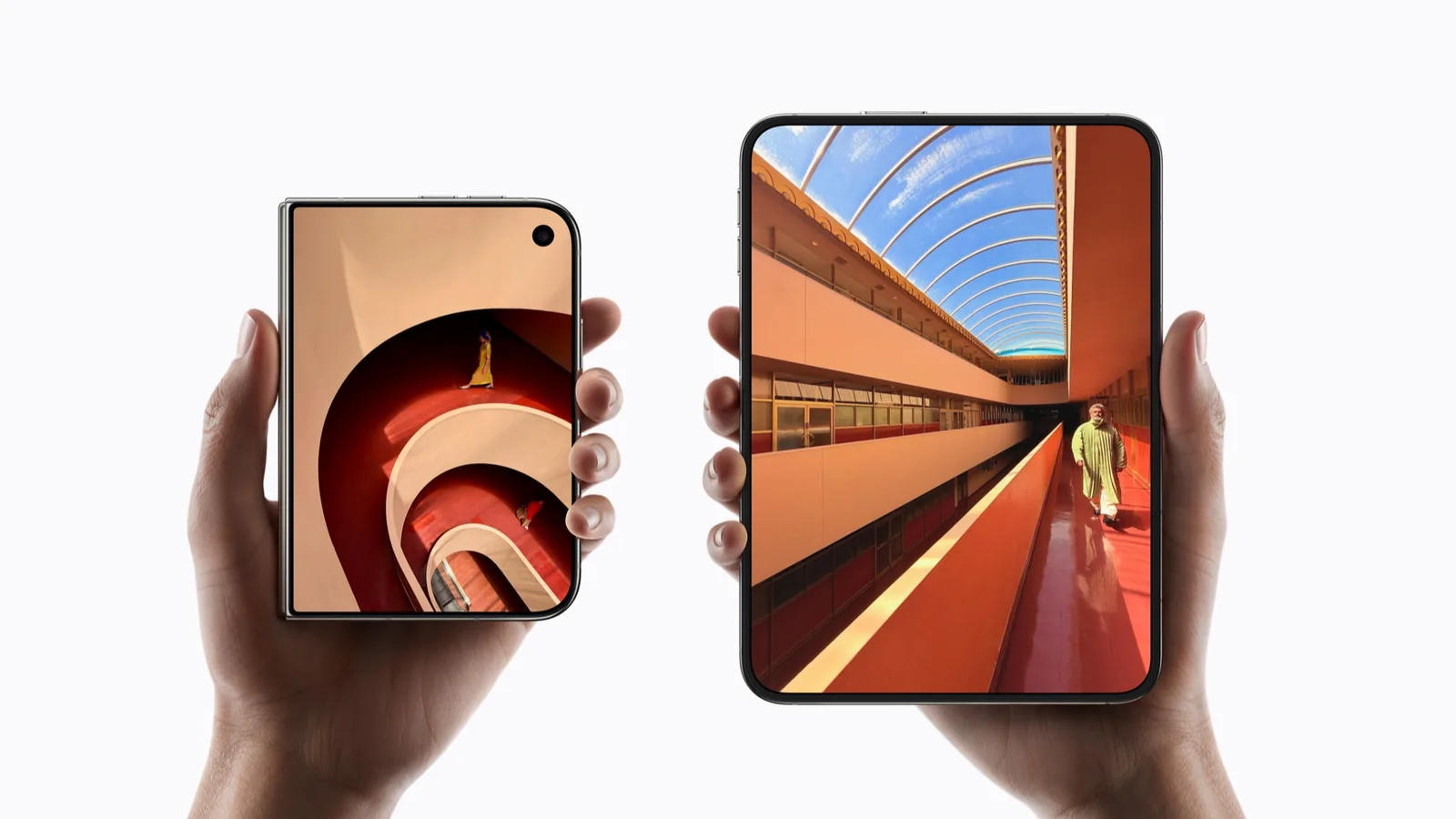
Apple describes using the outer display to include a person who is physically with you. That is a different task from showing more remote callers on the inner screen.
Before a call, decide who needs to see whom. Put the device where both local participants can sit comfortably. A second display should reduce crowding, not make someone lean into an awkward angle.
Check what the other person can see
Use a private practice call to inspect the outgoing views. Ask the remote participant which camera feed they see. Make camera selection explicit before pointing either side of the device at a room or document.
Frame the shot with background privacy in mind. A rear camera can reveal more of your surroundings than a face-facing view. Check the frame before demonstrating a dual-camera feature.
| Before the call | During the call |
|---|---|
| Decide who will use each display. | Ask the remote person which view is visible. |
| Remove private material from the scene. | Confirm before showing another camera feed. |
| Place the device on a stable surface. | Find mute and end-call controls without moving it. |
A personal call is not a screen-share meeting
Use this profile for the local-participant and camera arrangement. For following shared material alongside meeting participants, Zoom has a different official preview and its own checklist.
For a reusable test record, the app-testing checklist asks for the device, app and software version. Avoid posting a call recording without everyone’s permission.
Compare the capture task separately
The related Camera profile covers framing a photo or video rather than placing a call. A camera preview on the outer display and an outer-display call are related ideas, but they are not the same feature.
This page does not evaluate conferencing latency, recording permission or cross-device call support. Keep those questions separate from whether the local display arrangement suits your group.
A useful first check
Use these prompts when you have the app and device in hand. They are a test plan, not reported test results.
- Check both local participants’ sight lines.
- Confirm the active outgoing camera with the remote person.
- Find mute without moving the device.
- Keep private material outside both camera views.
Keep a repeatable test record with the app version, software build and outcome.
Sources & scope
Primary references. The claim beside each link sets its scope.
- Apple unveils iPhone DuoApple Newsroom · Checked Sep 19, 2026
Official announcement and app previews; not a retail-device test.
- Design for iPhone DuoApple Developer · Checked Sep 19, 2026
Design guidance and transcript: resizable layouts, controls, Split View and fold avoidance.